ya fungsinya shotbox adalah kita bisa berinteraksi dengan pengunjung situs kita. berikut cara cara memasang shoutbox di blog anda.. disini kita menggunakan Shoutmix
1. masuk kesitus Shoutmix
2. Create Your Shoutbox Now ==>diklik lalu isi username, password, nama dan email anda
3. Pilih style shotboxnya yang anda suka
4. Masuk ke control panel
4. Anda tinggal setting sesuai keinginan anda
5. Pilih Get code, lalu pilih Place Shoutbox on the Webpage
6. copy kodenya lalu login ke blog anda
7. Klik layout lalu klik add page element,pilih HTML/Javascript -- klik add To Blog
6. masukkan kode shoutbox yang tadi anda copy lalu klik save
7. view blog adan di jendala baru..tada...blog anda sudah terpasang shoutbox
semoga bermanfaat...contoh ada dibawah
Cara memasang Shoutbox diblog anda menggunakan Shoutmix
.
Thursday, April 24, 2008
0
comments

Tumbuh Kembang Otak Balita Anda
Labels: Kesehatan
Sebagai orang tua, kita semua ingin anak kita cerdas, sehat dan kuat. Kita ingin yang terbaik untuk buah hati kita dan ingin mereka tumbuh secara maksimal. Untuk mengerti bagaimana kita sebagai orang tua dapat membantu anak-anak kita untuk tumbuh menjadi anak yang cerdas, sehat dan kuat, penting bagi kita untuk mengerti tumbuh kembang tubuh dan otaknya, agar kita mengerti apa yang bisa kita lakukan untuk membantu mereka. Kali ini, mari kita pelajari tumbuh kembang otak balita dan apa yang bisa kita lakukan untuk memaksimalkannya.
Tumbuh kembang otak dimulai sejak bayi masih di dalam kandungan (masa-masa prenatal), dimulai sejak satu bulan pertama kehamilan, ketika otak dan urat saraf tulang belakang mulai terbentuk di dalam embrio. Di bulan ke-enam kehamilan, hampir semua dari milyaran neuron (sel saraf) yang ada di otak dewasa telah terbentuk, dan 250.000 neuron baru terbentuk setiap menitnya. Setelah neuron terbentuk, mereka dengan cepat bermigrasi ke daerah otak dimana mereka akan berfungsi. Neuron akan mulai bisa dibeda-bedakan untuk mengambil peranan yang lebih spesifik, dan mereka membentuk hubungan (sinaps) dengan neuron lain yang membantu mereka berkomunikasi dan menyimpan informasi. Neuron terus membentuk sinaps dengan neuron lain di masa kanak-kanak. Saat kelahiran, kebanyakan neuron telah ditempatkan dengan tepat di dalam otak yang belum dewasa yang telah mulai untuk berbentuk dan berfungsi seperti otak dewasa.
Lebih lagi, perubahan yang signifikan dalam arsitektur saraf otak mulai terjadi setelah kelahiran. Baik sebelum dan sesudah kelahiran, “pendewasaan” awal hubungan otak mulai terjadi: neuron menciptakan lebih banyak sinaps dengan neuron lain dibanding yang akan dipakai oleh otak dewasa. Proliferasi sinaps ini menciptakan potensi yang besar bagi otak yang sedang berkembang, tetapi juga membuat otak yang masih muda tidak efisien dan “bising” dengan hubungan neuron yang berulang-ulang dan tidak dibutuhkan. Maka dari itu, proliferasi ini dengan segera diikuti dengan masa “pemangkasan” ketika sinaps yang jarang dipakai akan secara bertahap dieliminasi untuk mencapai jumlah yang dibutuhkan otak untuk bekerja secara efisien. Sinaps baru terbentuk saat yang lain dipangkas. Sejak kelahiran sampai sekitar usia 8 bulan, sinaps dibentuk dengan lebih cepat. Sekitar 1000 trilyun sinaps ada di dalam otak di usia 8 bulan.
Setelah ulang tahun yang pertama, pemangkasan terjadi lebih cepat. Di usia 10 tahun, seorang anak punya sekitar 500 trilyun sinaps, yaitu sama dengan kebanyakan orang dewasa. Pemangkasan akan terjadi hingga usia 12 tahun tetapi otak akan mempertahankan fleksibilitas untuk belajar di kemudian hari.
Pertumbuhan otak juga mengalami 3 fase yaitu fase pertambahan berat otak (0-2 tahun), fase pembelahan sel otak (2-3 tahun), dan fase myelinisasi (3-6 tahun) yang terus berlanjut sampai masa pertumbuhan berakhir. Pertumbuhan otak dipengaruhi oleh faktor keturunan dan nutrisi sementara perkembangan otak dipengaruhi oleh faktor keturunan dan lingkungan (stimulasi). Perkembangan otak dapat optimal bila didukung dengan pertumbuhan otak y ang maksimal dan juga faktor lingkungan yang mendukung seperti stimulasi.
Sebagai orang tua, kita bisa membantu memaksimalkan tumbuh kembang otak balita kita dengan hal-hal berikut ini:
- Memberikan nutrisi yang tepat. Seperti yang sudah dijabarkan di atas, pertumbuhan otak dipengaruhi oleh nutrisi. Pastikan Anda memberikan nutrisi yang tepat dan seimbang untuk tumbuh kembang otak anak Anda.
- Kembangkan hubungan yang hangat dan dekat dengan anak Anda. Tunjukkan kepada mereka bahwa Anda mengasihi mereka. Tunjukkan betapa bahagianya Anda akan kehadiran mereka. Bantu mereka merasa aman dan dikasihi.
- Meresponi anak Anda. Perhatikan ritme dan perilaku mereka, coba untuk mengerti apa yang mereka rasakan dan apa yang mereka beritahukan pada Anda.
- Sadari bahwa tiap anak adalah unik. Ingat bahwa sejak lahir tiap anak mempunyai temperamen yang berbeda, mereka tumbuh dengan kecepatan yang berbeda, dan jangan bandingkan anak-anak Anda. Punyai harapan yang positif akan apa yang mereka dapat lakukan dan pegang teguh kepercayaan bahwa tiap anak dapat menjadi sukses.
- Berbicara, membacakan cerita dan bernyanyi bersama.
- Biarkan mereka mengeksplorasi dunia mereka dan bermain. Anda bisa mengawasi dan membantu saat mereka membutuhkan, tetapi biarkan mereka mengeksplorasi dengan sendiri.
- Mendisiplin anak.
- Canangkan rutinitas yang dapat diandalkan.
- Batasi menonton TV. Batasi waktu yang anak Anda habiskan di depan televisi. Seleksi tipe acara yang mereka tonton, pastikan mereka menonton acara yang mendidik mereka.
(Resources: Shore, R. (1997). Rethinking the Brain: New Insights into Early Development. New York, NY: Families and Work Institute, pp. 26-27; Thompson, Ross A. Development In The First Years Of Life, in the Future of Children Vol. 11, No. 1; Porter, Philips. Early Brain Development in Educarer.org; GUM literatures)
Mencegah Stroke Dengan Buah
Labels: KesehatanStroke bukan lagi penyakit yang diderita oleh orang-orang yang telah berusia lanjut, hati-hati yang mudapun bisa terkena stroke. karena itu, jaga pola makan anda dari sekarang agar terhindar dari penyakit berbahaya ini. berikut beberapa buah yang bisa dikonsumsi untuk mencegah stroke :
- Apel : Buah ini bisa menurunkan kolesterol darah, menurunkan tekanan darah dan menguatkan jantung.sangat baik untuk pencegahan dan penyembuhan penyakit stroke
- pisang : berfungsi menurunkan menguatkan jantung karena banyak mengandung sebaiknya dikonsumsi dalam keadaan yang tidak terlalu Matang
- Alpukat : Buah ini bisa menurunkan LDL, Mencegah Anemia dan Mencegah Keriput. Baik dikonsumsi untuk mencegah Stroke
- Bawang Putih : Berguna untuk menurunkan Kolesterol dan jika dikonsumsi bersama seledri, bawang putih bisa menurunkan tekanan darah
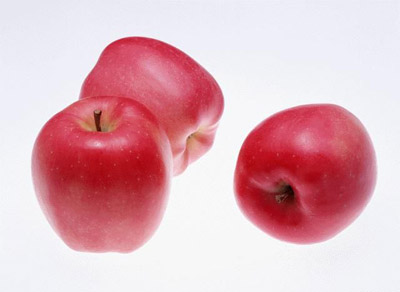


*freekick
Aplikasi Wideband CDMA pada Jaringan GSM
.
Wednesday, April 23, 2008
0
comments
Abstraksi
Teknologi akses UMTS (Universal Mobile Telecommunications System) yang digunakan saat ini masih dalam perencanaan. Salah satu teknologi akses yang diproposalkan adalah sistem Wideband CDMA (W-CDMA) yang saat ini masih dalam pengetesan yang dilakukan oleh CODIT (Code Division Testbed) yang beranggotakan manufaktur–manufaktur di bidang telekomunikasi yang dipimpin oleh Ericsson. Salah satu sistem mobile yang paling banyak digunakan saat ini adalah GSM (Global System For Mobile Communication) yang berbasis TDMA dan langkah awal penerapan sistem UMTS pada jaringan eksis GSM adalah dengan digunakannya teknik dual mode pada struktur Abis interface BSS (Base Stasion Subsystem) dari jaringan GSM.
Evolusi GSM ke UMTS
UMTS(Universal Mobile Telecommunication Access) adalah sistem mobile communication generasi ketiga yang diharapkan sistem ini telah mampu melayani servis – servis sampai 2 Mbps dan pada frekuensi sekitar 2 GHz. Sistem UMTS yang diproposalkan dibangun dari infrastruktur sistem – sistem mobile yang ada saat ini seperti GSM, AMPS, PDC, PCS dan lain – lain yang berevolusi menuju sistem UMTS. Sistem akses yang diskenariokan pada sistem UMTS adalah W-CDMA karena mempunyai banyak kelebihan yaitu :
Evolusi pada GSM diawali dengan GSM 900, GSM 1800, GSM 1900 kemudian yang dikenal sebagai GSM + dan GSM 2+ dan akhirnya menuju ke sistem universal akses (UMTS). Langkah awal penerapan UMTS pada infrastruktur GSM adalah menambah interface tertentu sebagai penghubung antara GSM BSS (Base stasion Subsystem) dengan jaringan W-CDMA sehingga pada jaringan UMTS akan terjadi dualmode W-CDMA/GSM terminal. Dengan sifat dualmode pada terminal ini dapat memberikan solusi yang fleksibel pada operator GSM dengan pembagian spektrum frekuensi yang baru yaitu GSM untuk voice dan data dengan laju yang rendah sedangkan UMTS untuk data dengan laju yang tinggi.
Sistem Wideband CDMA
Sistem W-CDMA adalah teknologi multiple akses dengan menggunakan modulasi DS – SS yang dapat menyediakan fasilitas pengaksesan user ke jaringan PSTN (Public Switched Telephone Network) dan dapat mengirimkan servis – servis transport voice, data, facsmile dan servis multimedia. Teknologi ini berbeda dengan teknik akses radio konvensional yang menggunakan teknik pembagian bandwidth frekuensi yang tersedia ke kanal narrow atau ke dalam time slot. Teknologi W-CDMA dalam mengakses data dilakukan secara terus menerus selebar bandwidth tertentu (5 - 15 MHz).
Untuk membedakan masing–masing servis seperti telepon, facsmile, data atau multimedia maka digunakan kode– kode tertentu yang saling berkorelasi untuk masing – masing servis dan dipenerima akan digunakan kode–kode yang sama yang saling berkorelasi. Karena sistem W-CDMA ini merupakan pentransmisian pita lebar maka memiliki beberapa keuntungan yaitu :
• Tahan terhadap interferensi
• Memiliki kondisi multipath propagasi
• Mempunyai efisiensi tinggi dan kapasitas tinggi bila diterapkan dalam konfigurasi multisel
• Mempunyai kemampuan untuk melayani servis dengan laju data tinggi, servis ISDN, multimedia dan bandwidth on demand.
• Mampu melayani servis dengan laju data yang tinggi sampai 384 Kbps untuk area luas dan 2 Mbps untuk area indoor.
• W-CDMA dapat melayani servis – servis yang berbeda pada frekuensi carrier yang sama sehingga dapat dimanfaatkan untuk komunikasi multimedia.
• Optimal bila digunakan pada transfer paket data
• Tidak memerlukan sinkronisasi antar BTS dan memiliki infrastruktur cost yang rendah
• Mampu mendukung antena array adaptive, deteksi multiuser dan mempunyai hirarki struktur sel.
• 100 voice panggilan per RF carrier dengan 8 Kbps codec
• 50 paket data user per RF carrier pada 384 Kbps
• Mempunyai frekuensi sesuai wideband RF carrier serta kontrol daya lebih akurat
• Demodulasi koheren pada kanal uplink dan downlink.
Sistem W-CDMA dapat mereduksi fading karena sinyal W-CDMA ditebar dalam bandwidth yang lebar (5-15 MHz). Pada range frekuensi 1800 – 2000 MHz akan menghasilkan fluktuasi sinyal fading selebar 1 –2 MHz.Bandwidth fading ini disebut sebagai coherence bandwidth. Sehingga dalam sistem CDMA harus ada cadangan fading yang harus dilebihi. Dalam sinyal W-CDMA ini terdapat sebagian sinyal yang terdegradasi akibat mutipath fading sehingga diperlukan teknik pemrosesan sinyal untuk mengantisipasi degradasi sinyal. Aplikasi dari komunikasi spread spectrum adalah pada komunikasi militer dimana teknik ini tahan terhadap jamming dan tipis kemungkinan untuk dimasuki noise. Selain itu teknologi W-CDMA saat ini sudah diaplikasikan secara komersial pada sistem tertentu karena kelebihannya yang menahan frekuensi dari sistem lain dan dapat mereduksi interferensi dari sistem lain yang menggunakan frekuensi yang sama.
Sistem W-CDMA mampu mengirimkan servis – servis dengan laju data yang tinggi seperti high speed data atau fax, multimedia dan bandwidth on demand. Adapun kapasitas maksimum dari base stasion W-CDMA adalah:
Dimana:
Cmax =jumlahmaksimum panggilan
RC = chip rate
Rb = bit rate service
Eb/No = SNR total per bit
b = faktor interferensi inter sel (antar sel)
Untuk membandingkan efisiensi sistem dalam menggunakan spektrum frekuensi untuk melayani servis – servis maka perlu diperhitungkan juga efisiensi trunking. Efisiensi trunking adalah perbandingan antara jumlah rata – rata panggilan terhadap jumlah maksimum panggilan (Jumlah panggilan yang memasuki sistem). Efisiensi trunking digunakan untuk mengukur keefisiensian dari sistem dan dapat mengetahui kapasitas relatif antara sistem wideband dan narrowband.
Sistem W-CDMA merupakan sistem yang fleksibel terhadap operator jaringan. Karena pengaruh noise pada sistem W-CDMA akan mempengaruhi kapasitas, daya radiasi dan kualitas sinyal. Bila diasumsikan terdapat model path loss pada daya transmisi, maka kapasitas dan range dari sistem W-CDMA diberikan dari hubungan berikut :
dimana :
C/Cmax= perbandingan kapasitas terhadap kapasitas maksimum (kapasitas range 0)
R/Rmax = perbandingan terhadap range maksimum (dalam satu user)
g =konstantapropagasi eksponensial (= 3,5 untuk model hatta).
Selain itu operator sistem dapat mengatur kapasitas dan servis sesuai dengan source codingnya. Sebagai contoh untuk mengimplementasikan servis voice dengan menggunakan voice coding yang dioperasikan pada setengah dari laju pengkodean 32 Kbits/s ADPCM. Dalam sistem W-CDMA mempunyai kefleksibelan terhadap kapasitas dan servis – servis yang dibawa. Kapasitas yang dapat dibawa untuk standar voice adalah : 64 Kbps ISDN, 64 Kbps untuk laju data yang tinggi atau 32 Kbps dengan laju pengkodean yang rendah dan VAD (Voice Activity Detection) dapat digunakan untuk menambah kapasitas.
Dalam sistem W-CDMA menggunakan frekuensi reuse (N = 1) sehingga akan mengurangi kerumitan dalam perencanaan frekuensi dan penentuan cell site serta biaya yang lebih murah. Karena sifat kefleksibelannya maka W-CDMA dapat diimplementasikan pada daerah urban, suburban dan rural tergantung pada kepadatan user.
Aplikasi Wideband CDMA Pada Jaringan GSM
Pada aplikasi penerapan sistem akses WideBand CDMA (W-CDMA) pada Abis interface jaringan eksis GSM (antara BSC dengan BTS). Penambahan sistem W-CDMA pada jaringan GSM akan menambah perangkat transceiver W-CDMA pada struktur Abis interface jaringan GSM yang dapat dimanfaatkan untuk layanan data kecepatan tinggi. Asumsi – asumsi yang digunakan :
• Dual mode terjadi pada BSS (Base Stasion Sub Sistem) dan pada MS tidak terjadi dual mode
• MSC telah mampu melayani 2 sistem (TDMA/W-CDMA)
Gambar 2 adalah konfigurasi Abis interface pada jaringan GSM.
BSS terdiri dari BSC yang mengontrol satu atau lebih BTS yang berisi beberapa TRX (Transmitter Receiver). Abis interface mempunyai kemampuan mendukung 3 konfigurasi BTS internal yang berbeda yaitu :
• Satu TRX.
• Beberapa TRX yang semuanya dilayani oleh satu kanal fisik secara bersama.
• Beberapa TRX yang masing – masing mempunyai kanal fisik.
Sedangkan BCF (Base Control Function) berfungsi mengatur fungsi common control antara transmitter dan receiver serta kanal fisik pada BTS. Dari gambar tersebut, penerapan dual mode W-CDMA pada Abis interface dilakukan dengan menambah perangkat TRX W-CDMA pada BSS yang proses transmisinya diatur oleh BSC. Sehingga secara umum diagram blok dual mode W-CDMA/TDMA seperti Gambar 4.
Struktur kanal dual mode GSM/W-CDMA secara garis besar terdiri atas kanal kontrol, kanal data TDMA, kanal data W-CDMA. Kanal kontrol terdiri atas kanal kontrol sistem TDMA dan kanal kontrol sistem W-CDMA.
Penerapan teknik dual mode W-CDMA pada jaringan GSM dilakukan dengan menambahkan addresing bit pada W-CDMA sebagai tanda frame W-CDMA, sehingga pada penerima MS atau BTS dapat mengidentifikasi frame–frame W-CDMA. Adanya field address akan diidentifikasi sebagai frame W-CDMA atau frame TDMA oleh BSC pada kanal uplink untuk pengolahan data serta mengirim ke MSC untuk keperluan routing, roaming dan lain-lain.
Pada sistem TDMA (GSM) adanya field address akan mengubah algoritma pemrosesan data pada radio link. Dengan adanya penambahan addressing ini maka terjadi perubahan proses channel coding pada sistem GSM.
Penambahan bit addressing adalah 3 bit sehingga output dari channel coding mempunyai bit rate (456+3)bit/20 ms = 22,95 kbps.
Pada sistem W-CDMA terdapat field address sehingga akan mengubah algoritma channel coding dengan menambahkan field address setelah interleaving.
Daftar Pustaka
[1] Andrew J Viterbi, CDMA principles of spread spectrum communications, Addison wesley Wireless Communications series 1996
[2] Atsushi Fukasawa, Wideband CDMA System for Personal Communications, IEEE communications magazines, october 1996
[3] Bhawani Shankar, Mobilising The Third Generation, Telecommunications magazine, August 1997
[4] Lawrence H, Dual Mode Celluler, Steiner Publishing Co 1992
[5] Erricson Radio system AB, UMTS/IMT-2000 Experimental System Deskription, December 1997
[6] Ermanno Berruto, Architectural Aspect for The Evolution of Mobile Communications Toward UMTS, IEEE journal on Selected Area Communications Vol 15 no 8, October 1997
[7 ETSI TC-SMG, Digital Celluler Telecommunications System phase 2+ radio tranmission and reception, july 1996
[8] ETSI TC-SMG, European Digital Celluler Telecommunications System (phase 2) BSC-BTS Interface Principles, September 1994.
Arfianto Fahmi, staf pengajar Jurusan Teknik Elektro STT Telkom
Jl Radio Palasari, Dayeuh Kolot, Bandung
Rainlendar - Software Kalender Desktop
.
Tuesday, April 22, 2008
0
comments
Rainlander merupakan program kalendar desktop sederhana yang hadir dengan feature menakjubkan. tool Ini terintegrasi dengan desktop wallpaper. Rainlendar secara otomatis menggarisbesarkan tanggal perjanjian Anda dengan orang lain.
System requirements
Windows:
* Windows 2000 or newer.
* 500 MHz or higher processor clock speed recommended
* 10 MB of available hard disk space
* 512 MB of RAM or higher recommended
* A display card capable of showing transparent windows
Download Rainlender


AppServ
Labels: Free SoftwareAppServ adalah Program yang dibuat oleh Phanupong Panyadee, konsepnya memudahkan untuk menginstall PHP, MySQL, Apache dalam satu menit
Packaging AppServ
~ Apache
~ PHP
~ MySWL
~ phpMyadmin
Struktur Folder Appserv
Directory structure of Apache Web Server
• apache/bin Main Apache program.
• apache/conf Apache config file.
• apache/error Apache Error Template (Found on Apache2.x only).
• apache/icons Apache icons.
• apache/logs Apache Log file.
• apache/modules Apache Modules.
Directory structure of MySQL Database
• mysql/bin Main MySQL database execution file.
• mysql/data MySQL database store.
• mysql/share MySQL Error Message.
Directory structure of PHP
• php PHP Command line Execution and DLL Library.
• php/ext PECL PHP Extension for PHP (Found on PHP5 only).
• php/extension PECL PHP Extension for PHP (Found onPHP 4 only).
• php/PEAR PEAR Framework Components for PHP.
Directory structure of www file store.
• www Directory Root for Web page file.
• www/cgi-bin CGI file directory.
• www/phpMyAdmin phpMyAdmin program directory.
• www/appserv AppServ file, you can delete it after install.
• www/index.php AppServ index.php file you can delete it after install.
Setelah menginstall dan mengerti struktur direktori/foldernya, anda bisa mencobanya dengan membuat program php dan harus menyimpannya di folder C:/AppServ/www. dan bisa diakses melalui browser seperti Firefox,Opera atau IE, ketikkan alamatnya di browser yang anda gunakan http://localhost/test.php atau http://127.0.0.1/test.php
Contributed by : apples
Copyright © by AppServNetwork All Right Reserved.
versi terbaru
AppServ 2.5.9
* Apache 2.2.4
* PHP 5.2.3
* MySQL 5.0.45
* phpMyAdmin-2.10.2
untuk masuk ke phpMyadmin bisa ketikkan alamat http://127.0.0.1/phpmyadmin di browser anda..semoga bermanfaat
Download AppServ


Mempercepat Booting Windows menggunakan BootVis
Labels: Free SoftwareBootvis adalah freesoftware buatan Microsoft untuk mempercepat proses booting windows anda
Cara Penggunaanya
1. pilih Trace
2. pilih Next Boot and Drive Trace
3. muncul window baru kemudian klik OK dan restart
4. setelah restart nanti akan ada proses dari bootvis, setelah selesai masuk ke bagian Trace dan pilih Optimize System
5. restart dan tunggu sampai proses bootvis selesai
6. restart lagi untuk merasakan perbedaannya
Download di Sini


Memunculkan Folder yang Hilang oleh Virus
.
Monday, April 21, 2008
0
comments
Mungkin diantara anda pernah mengalami Flashdisk(FD) atau memory external yang ada dihandphone hilang begitu saja, anda jangan panik dulu sehingga langsung memformat ulang FD / memory external HP anda. Folder yang hilang itu sebenarnya di hidden oleh virus...nah dibawah ada langkah-langah untuk memunculkan kembali folder yang hilang tersebut..
- Buka Command Prompt : Start~Program~Accessories~Command Prompt atau Start~Run ketikkan CMD lalu tekan enter
- Jendela Command Prompt terbuka ketikkan CD\, buka windows explorer lihat FD anda ada di drive apa? misalkan ada di Drive H
- Di Command Prompt ketikkan perintah F:
- lalu ketik attrib -s -h -r *.* /d /s Enter
- Kalau F:> sudah muncul kembali berarti prosesnya sudah selesai
Source : Internet
IE Shortcuts:
Labels: Tips N' TriksCompatible with other browser...
CTRL+A - Select all items on the current page
CTRL+D - Add the current page to your Favorites
CTRL+E - Open the Search bar
CTRL+F - Find on this page
CTRL+H - Open the History bar
CTRL+I - Open the Favorites bar
CTRL+N - Open a new window
CTRL+O - Go to a new location
CTRL+P - Print the current page or active frame
CTRL+S - Save the current page
CTRL+W - Close current browser window
CTRL+ENTER - Adds the http://www. (url) .com
SHIFT+CLICK - Open link in new window
BACKSPACE - Go to the previous page
ALT+HOME - Go to your Home page
HOME - Move to the beginning of a document
TAB - Move forward through items on a page
END - Move to the end of a document
ESC - Stop downloading a page
F11 - Toggle full-screen view
F5 - Refresh the current page
F4 - Display list of typed addresses
F6 - Change Address bar and page focus
ALT+RIGHT ARROW - Go to the next page
SHIFT+CTRL+TAB - Move back between frames
SHIFT+F10 - Display a shortcut menu for a link
SHIFT+TAB - Move back through the items on a page
CTRL+TAB - Move forward between frames
CTRL+C - Copy selected items to the clipboard
CTRL+V - Insert contents of the clipboard
ENTER - Activate a selected link
HOME - Move to the beginning of a document
END - Move to the end of a document
F1 - Display Internet Explorer Help
Windows Explorer Shortcuts:
Labels: Tips N' TriksALT+SPACEBAR - Display the current window’s system menu
SHIFT+F10 - Display the item's context menu
CTRL+ESC - Display the Start menu
ALT+TAB - Switch to the window you last used
ALT+F4 - Close the current window or quit
CTRL+A - Select all items
CTRL+X - Cut selected item(s)
CTRL+C - Copy selected item(s)
CTRL+V - Paste item(s)
CTRL+Z - Undo last action
CTRL+(+) - Automatically resize the columns in the right hand pane
TAB - Move forward through options
ALT+RIGHT ARROW - Move forward to a previous view
ALT+LEFT ARROW - Move backward to a previous view
SHIFT+DELETE - Delete an item immediately
BACKSPACE - View the folder one level up
ALT+ENTER - View an item’s properties
F10 - Activate the menu bar in programs
F6 - Switch between left and right panes
F5 - Refresh window contents
F3 - Display Find application
F2 - Rename selected item
Windows XP Shortcuts:
Labels: Tips N' TriksALT+- (ALT+hyphen) Displays the Multiple Document Interface (MDI) child window's System menu
ALT+ENTER View properties for the selected item
ALT+ESC Cycle through items in the order they were opened
ALT+F4 Close the active item, or quit the active program
ALT+SPACEBAR Display the System menu for the active window
ALT+TAB Switch between open items
ALT+Underlined letter Display the corresponding menu
BACKSPACE View the folder one level up in My Computer or Windows Explorer
CTRL+A Select all
CTRL+B Bold
CTRL+C Copy
CTRL+I Italics
CTRL+O Open an item
CTRL+U Underline
CTRL+V Paste
CTRL+X Cut
CTRL+Z Undo
CTRL+F4 Close the active document
CTRL while dragging Copy selected item
CTRL+SHIFT while dragging Create shortcut to selected iteM
CTRL+RIGHT ARROW Move the insertion point to the beginning of the next word
CTRL+LEFT ARROW Move the insertion point to the beginning of the previous word
CTRL+DOWN ARROW Move the insertion point to the beginning of the next paragraph
CTRL+UP ARROW Move the insertion point to the beginning of the previous paragraph
SHIFT+DELETE Delete selected item permanently without placing the item in the Recycle Bin
ESC Cancel the current task
F1 Displays Help
F2 Rename selected item
F3 Search for a file or folder
F4 Display the Address bar list in My Computer or Windows Explorer
F5 Refresh the active window
F6 Cycle through screen elements in a window or on the desktop
F10 Activate the menu bar in the active program
SHIFT+F10 Display the shortcut menu for the selected item
CTRL+ESC Display the Start menu
SHIFT+CTRL+ESC Launches Task Manager
SHIFT when you insert a CD Prevent the CD from automatically playing
WIN Display or hide the Start menu
WIN+BREAK Display the System Properties dialog box
WIN+D Minimizes all Windows and shows the Desktop
WIN+E Open Windows Explorer
WIN+F Search for a file or folder
WIN+F+CTRL Search for computers
WIN+L Locks the desktop
WIN+M Minimize or restore all windows
WIN+R Open the Run dialog box
WIN+TAB Switch between open items
Command Prompt / DOS:
Labels: Tips N' TriksKetik Yang huruf besarnya aja di Command Prompt / DOS
ANSI.SYS Defines functions that change display graphics, control cursor movement, and reassign keys.
APPEND Causes MS-DOS to look in other directories when editing a file or running a command.
ARP Displays, adds, and removes arp information from network devices.
ASSIGN Assign a drive letter to an alternate letter.
ASSOC View the file associations.
AT Schedule a time to execute commands or programs.
ATMADM Lists connections and addresses seen by Windows ATM call manager.
ATTRIB Display and change file attributes.
BATCH Recovery console command that executes a series of commands in a file.
BOOTCFG Recovery console command that allows a user to view, modify, and rebuild the boot.ini
BREAK Enable / disable CTRL + C feature.
CACLS View and modify file ACL's.
CALL Calls a batch file from another batch file.
CD Changes directories.
CHCP Supplement the International keyboard and character set information.
CHDIR Changes directories.
CHKDSK Check the hard disk drive running FAT for errors.
CHKNTFS Check the hard disk drive running NTFS for errors.
CHOICE Specify a listing of multiple options within a batch file.
CLS Clears the screen.
CMD Opens the command interpreter.
COLOR Easily change the foreground and background color of the MS-DOS window.
COMP Compares files.
COMPACT Compresses and uncompress files.
CONTROL Open control panel icons from the MS-DOS prompt.
CONVERT Convert FAT to NTFS.
COPY Copy one or more files to an alternate location.
CTTY Change the computers input/output devices.
DATE View or change the systems date.
DEBUG Debug utility to create assembly programs to modify hardware settings.
DEFRAG Re-arrange the hard disk drive to help with loading programs.
DEL Deletes one or more files.
DELETE Recovery console command that deletes a file.
DELTREE Deletes one or more files and/or directories.
DIR List the contents of one or more directory.
DISABLE Recovery console command that disables Windows system services or drivers.
DISKCOMP Compare a disk with another disk.
DISKCOPY Copy the contents of one disk and place them on another disk.
DOSKEY Command to view and execute commands that have been run in the past.
DOSSHELL A GUI to help with early MS-DOS users.
DRIVPARM Enables overwrite of original device drivers.
ECHO Displays messages and enables and disables echo.
EDIT View and edit files.
EDLIN View and edit files.
EMM386 Load extended Memory Manager.
ENABLE Recovery console command to enable a disable service or driver.
ENDLOCAL Stops the localization of the environment changes enabled by the setlocal command.
ERASE Erase files from computer.
EXIT Exit from the command interpreter.
EXPAND Expand a M*cros*ft Windows file back to it's original format.
EXTRACT Extract files from the M*cros*ft Windows cabinets.
FASTHELP Displays a listing of MS-DOS commands and information about them.
FC Compare files.
FDISK Utility used to create partitions on the hard disk drive.
FIND Search for text within a file.
FINDSTR Searches for a string of text within a file.
FIXBOOT Writes a new boot sector.
FIXMBR Writes a new boot record to a disk drive.
FOR Boolean used in batch files.
FORMAT Command to erase and prepare a disk drive.
FTP Command to connect and operate on a FTP server.
FTYPE Displays or modifies file types used in file extension associations.
GOTO Moves a batch file to a specific label or location.
GRAFTABL Show extended characters in graphics mode.
HELP Display a listing of commands and brief explanation.
IF Allows for batch files to perform conditional processing.
IFSHLP.SYS 32-bit file manager.
IPCONFIG Network command to view network adapter settings and assigned values.
KEYB Change layout of keyboard.
LABEL Change the label of a disk drive.
LH Load a device driver in to high memory.
LISTSVC Recovery console command that displays the services and drivers.
LOADFIX Load a program above the first 64k.
LOADHIGH Load a device driver in to high memory.
LOCK Lock the hard disk drive.
LOGON Recovery console command to list installations and enable administrator login.
MAP Displays the device name of a drive.
MD Command to create a new directory.
MEM Display memory on system.
MKDIR Command to create a new directory.
MODE Modify the port or display settings.
MORE Display one page at a time.
MOVE Move one or more files from one directory to another directory.
MSAV Early M*cros*ft Virus scanner.
MSD Diagnostics utility.
MSCDEX Utility used to load and provide access to the CD-ROM.
NBTSTAT Displays protocol statistics and current TCP/IP connections using NBT
NET Update, fix, or view the network or network settings
NETSH Configure dynamic and static network information from MS-DOS.
NETSTAT Display the TCP/IP network protocol statistics and information.
NLSFUNC Load country specific information.
NSLOOKUP Look up an IP address of a domain or host on a network.
PATH View and modify the computers path location.
PATHPING View and locate locations of network latency.
PAUSE Command used in batch files to stop the processing of a command.
PING Test / send information to another network computer or network device.
POPD Changes to the directory or network path stored by the pushd command.
POWER Conserve power with computer portables.
PRINT Prints data to a printer port.
PROMPT View and change the MS-DOS prompt.
PUSHD Stores a directory or network path in memory so it can be returned to at any time.
QBASIC Open the QBasic.
RD Removes an empty directory.
REN Renames a file or directory.
RENAME Renames a file or directory.
RMDIR Removes an empty directory.
ROUTE View and configure windows network route tables.
RUNAS Enables a user to execute a program on another computer.
SCANDISK Run the scandisk utility.
SCANREG Scan registry and recover registry from errors.
SET Change one variable or string to another.
SETLOCAL Enables local environments to be changed without affecting anything else.
SETVER Change MS-DOS version to trick older MS-DOS programs.
SHARE Installs support for file sharing and locking capabilities.
SHIFT Changes the position of replaceable parameters in a batch program.
SHUTDOWN Shutdown the computer from the MS-DOS prompt.
SMARTDRV Create a disk cache in conventional memory or extended memory.
SORT Sorts the input and displays the output to the screen.
START Start a separate window in Windows from the MS-DOS prompt.
SUBST Substitute a folder on your computer for another drive letter.
SWITCHES Remove add functions from MS-DOS.
SYS Transfer system files to disk drive.
TELNET Telnet to another computer / device from the prompt.
TIME View or modify the system time.
TITLE Change the title of their MS-DOS window.
TRACERT Visually view a network packets route across a network.
TREE View a visual tree of the hard disk drive.
TYPE Display the contents of a file.
UNDELETE Undelete a file that has been deleted.
UNFORMAT Unformat a hard disk drive.
UNLOCK Unlock a disk drive.
VER Display the version information.
VERIFY Enables or disables the feature to determine if files have been written properly.
VOL Displays the volume information about the designated drive.
XCOPY Copy multiple files, directories, and/or drives from one location to another.
TRUENAME When placed before a file, will display the whole directory in which it exists
TASKKILL It allows you to kill those unneeded or locked up applications
Windows Shortcuts - Run Commands
Labels: Tips N' TriksCara Cepat windows menggunakan Command Run
compmgmt.msc - Computer management
devmgmt.msc - Device manager
diskmgmt.msc - Disk management
dfrg.msc - Disk defrag
eventvwr.msc - Event viewer
fsmgmt.msc - Shared folders
gpedit.msc - Group policies
lusrmgr.msc - Local users and groups
perfmon.msc - Performance monitor
rsop.msc - Resultant set of policies
secpol.msc - Local security settings
services.msc - Various Services
msconfig - System Configuration Utility
regedit - Registry Editor
msinfo32 _ System Information
sysedit - System Edit
win.ini - windows loading information(also system.ini)
winver - Shows current version of windows
mailto: - Opens default email client
command - Opens command prompt, bisa juga cmd
mstsc - remote desktop
Run Commands untuk mengakses Control Panel:
Add/Remove Programs control - appwiz.cpl
Date/Time Properties control - timedate.cpl
Display Properties control - desk.cpl
FindFast control - findfast.cpl
Fonts Folder control - fonts
Internet Properties control - inetcpl.cpl
Keyboard Properties control - main.cpl keyboard
Mouse Properties control - main.cpl
Multimedia Properties control - mmsys.cpl
Network Properties control - netcpl.cpl
Password Properties control - password.cpl
Printers Folder control - printers
Sound Properties control - mmsys.cpl sounds
System Properties control - sysdm.cpl
Matrox Millennium G450 Dual Head
.
Saturday, April 19, 2008
0
comments
driver untuk VGA matrox Millenium G450
bisa di download disini
CC Cleaner
.
Friday, April 18, 2008
0
comments
Free Software untuk membersihkan file temporary dengan otomatis....
Program Summary:
CCleaner is a freeware PC optimization tool.
It combines a system cleaner that removes unused and temporary files from your system and also a fully featured registry cleaner!
CCleaner allows Windows to run faster, more efficiently and gives you more hard disk space.
The best part is that it's Small, Fast and Free!
 Cleans the following Windows components:
- Internet Explorer
- Temporary File Cache
- URL History
- Cookies
- Hidden Index.dat files
- Last download file location - Firefox
- Temporary File Cache
- URL History
- Cookies
- Download manager - Recycle Bin
- Clipboard
- Windows Temporary files
- Windows Log files
- Recent Documents (on the Start Menu)
- Run history (on the Start Menu)
- Windows XP Search Assistant history
- Windows XP old Prefetch data
- Windows memory dumps after crashes
- Chkdsk file fragments


Advanced Options allow cleaning of:
- Menu Order cache
- Tray Notifications Cache
- Window Size and Location Cache
- User Assist history
- IIS Log Files
- Custom Folders
 Application Cleaning:
As well as cleaning up old files and settings left by standard Windows components, CCleaner also cleans temporary files and recent file lists for many applications. Including:- Firefox, Opera, Safari, Media Player, eMule, Kazaa, Google Toolbar, Netscape, Microsoft Office, Nero, Adobe Acrobat Reader, WinRAR, WinAce, WinZip and more...
 Registry Cleaning:
CCleaner uses an advanced Registry Cleaner to check for problems and inconsistencies. It can check the following: - File Extensions
- ActiveX Controls
- ClassIDs
- ProgIDs
- Uninstallers
- Shared DLLs
- Fonts
- Help File references
- Application Paths
- Icons
- Invalid Shortcuts and more...
 Safety:
CCleaner was designed from the ground to be safe and secure to use. It has multiple levels of checks in place to ensure that it cannot delete any useful information or documents you may still need. We also certify that it contains no Spyware or Adware. High Security:
For the super cautious users we also offer secure file erasing. By overwriting the files before deleting them, making it impossible to recover the data. Multiple Languages:
Thanks to the translators, CCleaner is available in 35 different languages:English, Albanian, Arabic, Bosnian, Bulgarian, Catalan, Chinese (Simplified), Chinese (Traditional), Czech/Slovak, Danish, Dutch, Finnish, French, Galician, German, Greek, Hebrew, Hungarian, Italian, Japanese, Korean, Lithuanian, Macedonian, Norwegian, Polish, Portuguese, Portuguese (Brazilian), Romanian, Russian, Serbian Cyrillic, Serbian Latin, Slovak, Spanish, Swedish and Turkish.
Situsnya
Download
Anti Virus PCMAV RC23
Labels: AntiVir
Antivirus yang bagus untuk membunuh virus variant lokal.
PC Media Antivirus 1.0 RC23 telah resmi dirilis bersamaan dengan terbitnya majalah PC Media 01/2008 yang kini berpenampilan baru. Pada rilis kali ini, PCMAV mampu mengenali 1.368 virus beserta variannya yang banyak dilaporkan dan menyebar di Indonesia.
APA YANG BARU DI PCMAV RC23 (CLEANER & REALTIME PROTECTOR)?
* Ditambahkan, database pengenal dan pembersih 110 virus lokal/asing/varian baru yang dilaporkan menyebar di Indonesia. Total 1368 virus beserta variannya yang banyak beredar di Indonesia telah dikenal di RC23 ini oleh engine internal PCMAV.
* Optimasi, rutin yang menangani operasi baca file.
* Ditambahkan, cleaner atau decryptor khusus untuk virus Zulanick yang mengenkripsi dokumen yang diserang.
* Improvisasi, pesan yang muncul pada saat file yang akan di-scan ternyata dikunci oleh aplikasi lain ataupun sistem operasi.
* Diperbaiki, cleaner khusus virus Ezrael yang kini lebih tuntas memperbaiki setingan yang diubah oleh virus ini.
* Ditambahkan, engine heuristic yang pintar dalam mendeteksi virus-virus jenis VBScript.
* Diperbaiki, rutin khusus yang bertugas melakukan scan terhadap direktori StartUp, kini lebih pintar dan jeli dalam mencari virus.
* Ditambahkan, engine khusus yang secara pintar akan mendeteksi virus yang menggunakan teknik AutoRun yang mencoba menyelinap ke dalam komputer Anda.
* Ditambahkan, engine khusus yang bertugas melakukan scan terhadap data yang ada pada System Restore.
* Ditambahkan, rutin khusus yang memeriksa apakah file update (.vdb) yang telah di-download valid atau tidak.
* Diperbarui, perubahan beberapa nama virus mengikuti varian baru yang ditemukan.
* Improvisasi, kemampuan engine “DeepClean” agar perbaikan registry lebih sempurna dibanding PCMAV versi sebelumnya.
* Diperbaiki, kesalahan deteksi (false alarm) pada beberapa program.
* Perbaikan beberapa minor bug dan improvisasi kode internal untuk memastikan bahwa PCMAV Cleaner & PCMAV RealTime Protector lebih dari sekadar antivirus biasa.
Bisa di Download di Sini

Disabling Recent Documents History
Labels: Tips N' Triksuntuk menghilangkan dokumen terakhir yang dibuka tidak muncul di my recent documents
Windows XP includes a feature that keeps track of all recent documents you have opened or used. The idea is that you can select Start/Recent Documents History and quickly reopen any document you have recently used. I use many documents each day and never
use the feature myself. In my opinion, I can keep up with what I want to use without
Windows XP doing it for me.
The bad thing about Recent Documents History is that Windows XP has to calculate what should be put there each time you boot Windows, which can slow things down. So, if you never use the Recent Documents History, it's a good idea to disable it. Here's how:
1. Open the Registry Editor (select Start/Run, type regedit, and click OK).
2. Navigate to HKEY_CURRENT_USER\Software\Mcft\Windows\
CurrentVersion\Policies\Explorer.
3. Create a NoRecentDocsHistory D_WORD key. Double-click the value to open it once
it is created.
4. Set the Data Value to 1 to enable the restriction.
5. Click OK and close the Registry Editor. You'll need to restart the computer for the
change to take effect.
Take it from any source (diambil dari berbagai sumber)
Removing Unwanted Fonts
Labels: Tips N' TriksBerikut cara untuk menghilangkan bentuk huruf atau font yang tidak kita inginkan
One trick that increases your boot time a bit is to lose any fonts in the Fonts folder in
Control Panel that you never use. The more fonts you have, the more processing
Windows XP has to do to prep all of those fonts for use. You must be a bit careful here to
not remove fonts that you might want, but there is a good chance that you can live
without many of them. For instance, you may have foreign language fonts and other
symbol fonts (such as Wingdings) that you never use.
To delete unneeded fonts, follow these steps:
1. Open the Fonts folder in Control Panel.
2. Select Edit/Select All and then Edit/Copy.
3. Create a new folder on your desktop, open it, and select Edit/Paste.
4. In this new folder, delete any of the fonts you do not want.
5. Return to the Fonts folder in Control Panel. Right-click the selected fonts and click
Delete.
6. Go back to your new desktop folder and click Edit/Select All.
7. Return to your Fonts folder and click Edit/Paste. You now have only the desired fonts in the Fonts folder.
Tip:
You can directly delete fonts from the Fonts folder without creating the secondary folder. However, I recommend the preceding steps to help ensure that you do not make a mistake in the deletion process.
Take it from any source (diambil dari berbagai sumber)
How to Fix "Autochk Program Not Found" error when Windows Boots
Labels: TroubleshootingI ran across an interesting problem the other day that I had not encountered before, a customer was trying to uninstall their Norton Internet Security software to install a newer version. During the uninstall process, something went wrong and when the computer rebooted they saw a screen with the following error:
Autochk program not found
Then after a few seconds, the computer would reboot and again they were presented with the same error. An unendless loop of the computer rebooting with seemingly no way to solve it.
The computer would not boot into Safe Mode, and booting into the Recovery Console with a Windows XP boot disk was no help either.
So what was the solution? Well, after removing the drive and placing it in another computer, it appeared that the drive partition was accidentally hidden, most likely by the uninstall of Norton or the way in which the Norton GoBack utility was "protecting" the drive. Now the question became, how do you unhide the partition so the system will boot normally again.
Luckily, PowerQuest (now owned by Symantec) has a small DOS utility that fixes the problem rather easily. The program is called PTEDIT. If you are experiencing a similar issue, follow the steps below to download the utility to a boot disk and unhide the partition. On a working computer, do the following:
1) Click the link below and save PTEDIT.ZIP to your desktop
ftp://ftp.symantec.com/public/english_us_canada/tools/pq/utilities/ptedit.zip
2) Create a bootable MS-DOS disk for Windows
In Windows XP
* Place a blank floppy disk in Drive A
* Open My Computer
* Right-click on Drive A (floppy drive)
* Click on Format
* Check the box for "Create an MS-DOS Startup Disk"
* Click Start
* Click OK to the warning about formattting the disk will erase all data
* Click Ok to Format Complete
* Close the Format Disk window
For boot disks for other operating systems, you may want to visit Bootdisk.com
3) Copy PTEDIT to the floppy disk
* Double-click on the PTEDIT.ZIP file you downloaded to the desktop
* Right-click on PTEDIT.EXE and click on Copy
* Open My Computer
* Double-click on Drive A
* Click on Edit
* Click on Paste
4) Remove the disk from the floppy drive and place it in the floppy drive of the problem computer
5) Turn on the power to the problem computer and allow it to boot to from the floppy drive. Make sure the BIOS in your computer is set to boot from the floppy drive first.
6) At the A:\> prompt, type the following
PTEDIT and press Enter
7) You'll be presented with "Power Quest Partition Table Editor" screen. The key is to look in the first column of the table under Type. The number here should generally be 07 (hex), meaning the partition is an "Installable File System", in other words a bootable drive. If its anything else its not bootable.
Using your tab key, tab down to the Type box and hold down ALT + T to open the Set Type menu, then with your keyboard arrow, select 07, tab down to Ok and press Enter
8) Hold down ALT + S to Save Changes to the partition table and then Press CTRL +C to exit out of the program.
9) Reboot your computer and it should now boot normally into Windows.
Of course, all these steps should be followed correctly, and if you are not comfortable changing this information you should consult a friend or computer tech that can help you with the problem.
Source : http://www.pchell.com
cara buka youtube,myspace,rapidshare yang diblok pake Proxy
Labels: Tips N' TriksWah sekarang susah buka youtube atau myspace gara2 satu konten fitna jadi semuanya di blok.biasanya cara membuka situs yang diblok menggunakan proxy bisa menggunakan weob proxy atau web yang menyediakan/mem-bypass proxy agar langsung dipakai.
untuk kasus rapidshare, bisa diakali dengan cara :
http://www.rapidshare.com --> menjadi https://www.rapidshare.com
untuk youtube atau lainnya bisa diakali dengan cara :
1. masuk ke situs www.alloxy.com lalu masukkan situs yg ingin dimasuki
2. masuk ke situs www.proxydom.com lalu masukkan situs yg ingin dimasuki
tks buat pakde keong untuk informasinya....
Bypass ALL Internet Blocking System
Labels: Free Software
- # 100% freedom to have 100% information in most secure way.
- # It means no matter where you are you can access 100% of internet I mean no firewalls no restriction nothing….
- # Almost all schools, universities and corporate offices raise firewalls to filter out not work related sites, now those firewalls will be of no use or they have to change their plans.
- # Everybody can access various social networks like Orkut, Youtube, Myspace, Hi5, Facebook, Linkedin etc. which are blocked almost in 99% schools and offices.
- # 100% real time and it’s encryption is better then any online banking system.
It’s very simple you have to just-
* download an exe file
* then extract it
* and run
* Set proxy if u have any (generally in offices internet are provided through proxies, you can find that, through tools>>internet options>>Connections>>LAN Settings>> there you are with proxy server for your LAN and it’s port
* Just copy that to proxy settings of Ultrasurf.
* Then a window will pop up, says some thing in Chinese, just close this window
* And open fresh internet explorer
* There you are, you can surf any information.
* For office people: beware don’t spread words to your colleagues keep this info as limited as you can, coz if system people got to know about it then they’ll take your comp for scrutinizing.
[Update:10.08.2007] If you are using browser other than IE, then you have to modify your proxy IP address to 127.0.0.1 with port :9666
Code:
Donload disini
selamat mencoba :)
kumpulan Otak-atik PC jilid I
Labels: Tips N' TriksRestoring Desktop Icon to the Quicklaunch Bar
jika kamu gak sengaja delete icon Desktop di Quicklaunch toolbar
1. Go to C:\Documents and Settings\user_name\Application Data\Microsoft\Internet Explorer\Quick Launch
(dimana user_name sesuai dengan nama login kamu)
2.buat Text File ShowDesktop.SCF dengan konten:
[Shell]
Command=2
IconFile=explorer.exe,3
[Taskbar]
Command=ToggleDesktop
Tidak Menampilkan Logon, Logoff, Startup and Shutdown Status Messages
1. buka Run ( dari Start )
2. Ketik Regedit
3. cari HKEY_LOCAL_MACHINE\SOFTWARE\Microsoft\Windows\CurrentVersion\policies\system
4.Jika belum ada disana, buat DWORD value named DisableStatusMessages
5. Ketik value 1
Speeding Up Display pada Item Start Menu
1. Klik kanan Pada Area desktop
2. klik Properties
3. Uncheck atau kosongkan pada appearence tab, Effects button dan show shadows under menus
Speeding Up Display menu pada sat membuka file
1. Buka Run pada start menu
2. Ketik Regedit
3. HKEY_CURRENT_USER\Control Panel\Desktop\Menushowdelay
4.Klik 2x or tekan enter
5. Ganti value standar yaitu 400 menjadi 0.0001
Hide/Unhide Nama Log on
Jika kamu ingin hide / unhide nama user yang ditampilkan :
1. buka run
2. ketik regedit
3. cari HKEY_LOCAL_MACHINE \ SOFTWARE \ Microsoft \ Windows NT \ CurrentVersion \ Winlogon \ SpecialAccounts \ UserList
4. Tambah DWORD dengan nama user account yang ingin kamu hide
5. jangan lupa value nya dijadikan 0
6. Untuk memunculkan/unhide existing account maka rubah valuenya jadi 1.
Trick mengatasi file KORUP di media penyimpanan
Code:
chkdsk X: /f
masukkan kode tsb di command prompt
X = drive/folder yang bermasalah
SPEEDING UP LOG ON WINDOWS
1. buka RUn
2. ketik MsConfig
3. Pilih Service
4. Check hide All micrs.service
5. Ok
6. Boot / restart
Booting lebih Cepat Dengan Modus Hibernate
1. Klick start - Control Panel
2. Masuk Jendela Control Panel Klick 2 x Power Options
3. Setalah Itu anda akan memasuki Jendela Power Option Propertis
4. Klick Tab Hibernate
5. Setelah itu Berikan chek/centrong Pada Kotak Enable Hibernation\
6. Klick Ok
Cara Mengaplikasikannya
1. Klick start - Turn Off
2. Klick Tombol Shift Maka Menu StandBy Akan Berubah Menjadi Hibernate
3. Klick Tombol Hibernate
*diambil dari berbagai sumber di internet
Tips Membuat Password yang Baik
Labels: Tips N' TriksSumber: IT Komputer ( ketok.com )
Password merupakan salah satu cara untuk mengamankan suatu sistem komputer. Sistem komputer ini bisa berupa aplikasi, database ataupun sistem operasi. Oleh karena itu menentukan password sebaiknya jangan sembarangan dan harus memperhatikan beberapa hal tertentu. Password harus dibuat dengan memperhatikan beberapa hal berikut ini : *. Setidaknya panjang karakter password adalah 7 (tujuh) karakter. Anda juga bisa membuat password yang lebih panjang lagi demi keamanan.
*. Menggunakan sedikitnya 1 (satu) karakter simbol pada deretan karakter password Anda
*. Jika sistem Anda menerapkan password history, maka pastikan password baru Anda selalu berbeda jauh dengan password sebelumnya
*. Password Anda jangan sampai mengandung nama atau username
*. Jangan gunakan kata-kata yang umum digunakan pada karaktar password. Ini termasuk kata-kata yang digunakan dalam kamus
Beberapa contoh password yang kuat misalnya sebagai berikut.
*. a4$Jhi&]
*. 3k>i%uA
*. O@u#5nQ
Password sebenarnya merupakan sistem proteksi yang paling lemah dalam sistem komputer. Maka dari itu memilih password yang kuat merupakan suatu keharusan. Mengapa demikian? Tool password cracking semakin canggih dalam usahanya membongkar password, plus juga komputer yang digunakan dalam password cracking semakin baik performanya. Password yang sebelumnya butuh waktu seminggu untuk di-crack, maka saat ini bisa di-crack hanya dalam beberapa jam saja.
Software untuk meng-crack password biasa menggunakan tiga macam pendekatan yaitu: menebak secara pintar (intelligent guessing), serangan kamus (dictionary attack) dan juga otomatisasi yang berusaha mencoba untuk menggunakan kombinasi karakter. Jika diberi waktu yang cukup, maka metode otomatisasi tersebut bisa meng-crack password apa saja. Tetapi jika password yang digunakan sangat kuat, maka akan membutuhkan waktu yang sangat lama untuk memecahkannya.
Demikian tips singkat mengenai membuat password yang baik dan kuat. Semoga bermanfaat bagi Anda semua.
Catatan tambahan:
Untuk menghindari program seperti keylogger (program yang mencatat pengetikan keyboard), pola pemasukkan password bisa anda ubah. Berikut caranya:
- Contohnya password anda adalah 12345
- Cara penulisannya anda masukan dahulu angka 45, terus pindahkan kursor mouse anda ke depan, baru ketik 123
- Cara lainnya yg lebih rumit adalah masukan angka 5 dahulu, terus tekan tombol 'home', terus ketik 4 lalu tekan tombol 'home' lagi, setelah itu baru pindahkan kursor dan baru ketik 123
nb: Keylogger pada umumnya tidak mencatat pengetikan tombol 'home', 'end', 'insert', sehingga bisa anda padukan atau buat suatu variasi baru yang akan membingungkan pencuri password.
Cara ini memang terbilang rumit tapi efektif untuk mencegah pencuri password. Selain itu masukkan password anda terlebih dahulu, baru user id belakangan sehingga pencuri password otomatis akan mengira bahwa anda memasukan user id dahulu baru password sehingga account anda akan aman bila terjadi kecurian dengan keylogger.


